Make a Vote Profile Picture for Your State

Early voting in Texas opened on October 19. I made a free page where you can make a profile picture that reminds your friends to vote, with your state’s dates on it.

Make a vote profile picture for your state. Examples: Vote Early Oct 19 to 30 for Texas, Vote Early by Nov 2 for Kansas, Vote Early Oct 20 to Nov 2 for Missouri, and Vote by Mail due Nov 3 for Washington.

Make your vote profile picture

How the Vote Profile Picture Maker Works

Pick your state, then pick one of 18 designs. Save it as a square profile picture or a tall Story.

Every design fits inside the circle that Facebook, Instagram, and LinkedIn crop profile pictures to, so nothing gets cut off.

The message matches how your state votes. States with early voting get VOTE EARLY and their dates. Washington, Oregon, Colorado, California, and Hawaii mail every voter a ballot, and their pictures say VOTE BY MAIL. Alabama, Mississippi, and New Hampshire don’t have early voting open to everyone, so theirs say VOTE NOV 3.

Texas, Kansas, Missouri, New York, Washington, California, and other states have extra designs to choose from.

Where the Voting Dates Come From

I read each state’s official election page before putting its dates on a card. So far that’s 29 states and Washington, DC. The rest show Election Day, Tuesday, November 3, with a link to look up early voting there.

Hours and locations differ by county. Check yours with your county or state election office before you go.

The page is nonpartisan. Your picture is made in your browser, and nothing is uploaded.
Disable insert mode on Apple Magic Keyboard & Windows

I recently began using the Apple Magic Keyboard with my docking station. I use my docking station for my MacBook Pro and Dell XPS 13.

I highly recommend the Cable Matters Thunderbolt 3 dock, which works great with a single cable to my MacBook or my Dell XPS 13 and also provides charging & power to both laptops.

2022 Update: The Thunderbolt dock recommendation above was made in 2018 when I initially posted this blog. I now recommend and use the CalDigit TS3 Plus Thunderbolt 3 Dock. I use the CalDigit TS3 Plus with my new MacBook Pro 16-inch M1 Max with no issues.

I’ve retired the Dell XPS, because of hardware/driver issues that I couldn’t solve after lots of time on the phone with Dell Support.

All was fine until I accidentally toggled the keyboard into insert mode in Windows 10. Insert mode overwrites characters if you move the cursor earlier in the sentence to make an edit.

To disable insert mode on Windows 10 on the Apple Magic Keyboard

  1. Press clear above the seven (7) on the numeric keypad.
  2. Then press 0 (zero) on the numeric keypad.

Are you using an Apple Magic Keyboard without a numeric keypad? Try this.

  • Press Fn – I at the same time.

I don’t have an Apple keyboard without a numeric keyboard to test on, so let me know if this works.

Another way to disable the insert mode

  1. Go to the Start Menu.
  2. Please search for the On-Screen Keyboard app and open it.
  3. Click the insert key on the virtual keyboard.

Are you looking to purchase an Apple Magic Keyboard or Mouse? Use the links below.

2022 Update: Are you looking for a better wireless keyboard across your devices? The Logitech MX Keys Advanced Wireless Illuminated Keyboard is my top recommendation and the keyboard I enjoy far more than the Apple keyboards.

WordPress Error Solved – Warning: Parameter 2 to wp_hide_post_Public :: query_posts_join( ) expected to be a reference

Shop WordPress books on Amazon.

After upgrading from PHP version 7.0 to 7.1 on my WordPress website hosted with DreamHost, I received the error message below above the header on my website.

Warning: Parameter 2 to wp_hide_post_Public::query_posts_join() expected to be a reference, value given in /home/xyz_vps/garrettn.com/wp-includes/class-wp-hook.php on line 298

The solution

If you’re not using the WP Hide Post plugin, make a note of the error message, it should give you a hint of what plugin is causing the issue. In the case above, my hint was Parameter 2 to wp_hide_post_Public::query_posts_join(). You can also disable the problematic plugin.

Some code caused the error in the WP Hide Post plugin. I fixed it by connecting to my server via SFTP, then navigating to the WP Hide Post plug-in directory, as shown below.

/wp-content/plugins/wp-hide-post/public/class-wp-hide-post-public.php
  1. Open class-wp-hide-post-public.php and search &$.
  2. Remove the all & that appear before the $ and save your file.
  3. Refresh your website, and the problem should be fixed.
  4. If you’re using a caching plugin, you may need to force-purge your cache and try again.

PHP 7.1 doesn’t like & in front of $query parameters in functions.

Use Garrett Digital for help with SEO or WordPress problems, large or small.

Shop WordPress books on Amazon.

Google Home Mini vs Amazon Echo Dot

Google Home Mini vs Amazon Echo Dot

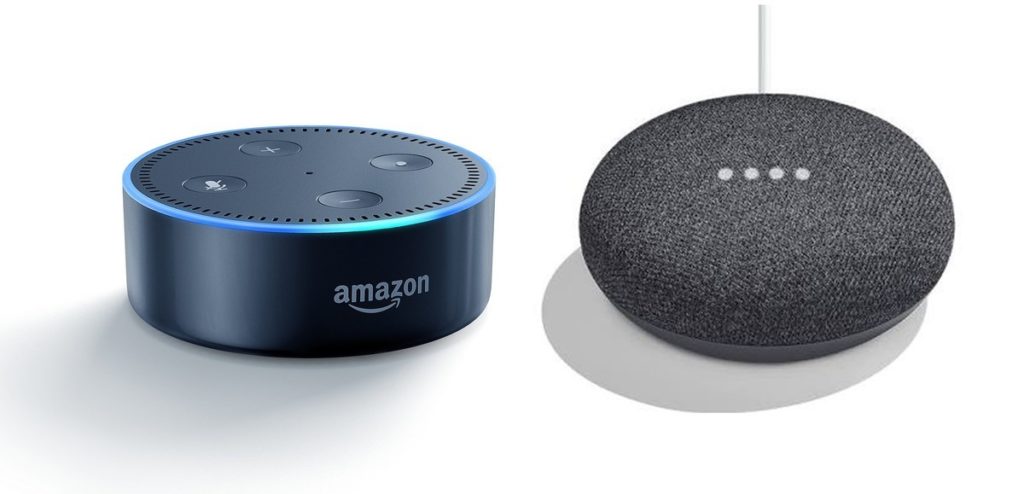
Whew, it has been a while. I’m here to give a quick overview of the Google Home Mini compared to the Amazon Echo Dot.

After using the Amazon Echo Dot for the past 1+ years, the Google Home Mini (and other versions of the Google Home) win for a few reasons.

  1. The speaker and sound quality of the Google Home Mini are better than the Amazon Echo Dot. You could almost use it as an everyday speaker if you’re not throwing a party and have relatively quiet surroundings.
  2. You can make phone calls using your Google Voice phone number through Google Home and the Google Home Mini. No phone is required. They need to fix the ability to connect the Google Mini Home and other Google Home devices to Bluetooth headsets. If you don’t have a Google Voice number set in Google Assistant, the phone calls show up as “No Caller ID” to the person receiving the call. You can dial by name from your Google Contacts or by phone number.
  3. The Google Home Mini and Google Home devices are more likely to understand complex questions, and you can ask follow-up questions. So Google Home is more contextually aware.
  4. The Google Home Mini and Google Home devices don’t require you to add skills to achieve things like requesting rideshare, playing simple games, etc.
  5. The setup process for Google Home devices is much more pleasant. It doesn’t require you to disconnect from your wifi and connect to the device.